![RaceID-Wordmark.png]](https://support.raceid.com/hs-fs/hubfs/RaceID-Wordmark.png?height=20&name=RaceID-Wordmark.png)
Good to know
- Add-ons are custom fields with a price. They are set up per distance, so add them to every distance where you want to sell them.
- Use the field type Extra for products you want to show with a picture, like a t-shirt, cap or bottle.
- You can also add a price to the choices in a Dropdown, Checkbox or Radio Button field, for example meal options or a donation amount.
- Participants pay for their add-ons when they register.
- VAT % is only for your bookkeeping. No VAT is added on top of the price you enter.
Set up an add-on
1. Log in to Pace Admin and open your race. Click the three dots next to the distance and select Edit.
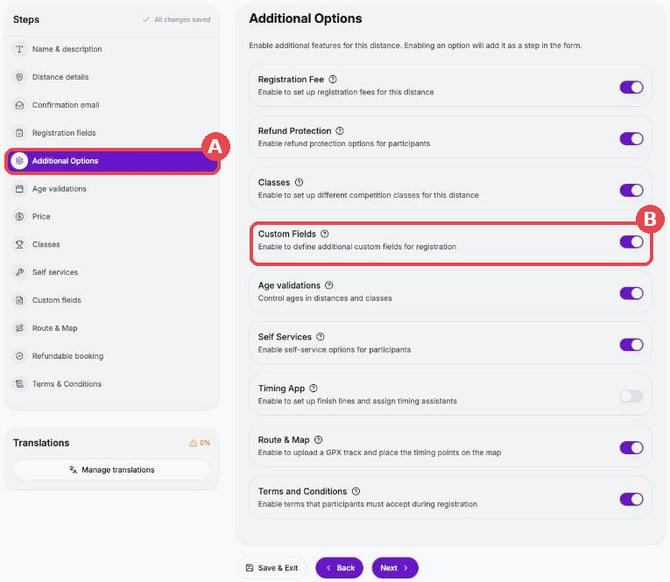
2. Click Additional Options (A) and turn on Custom Fields (B).
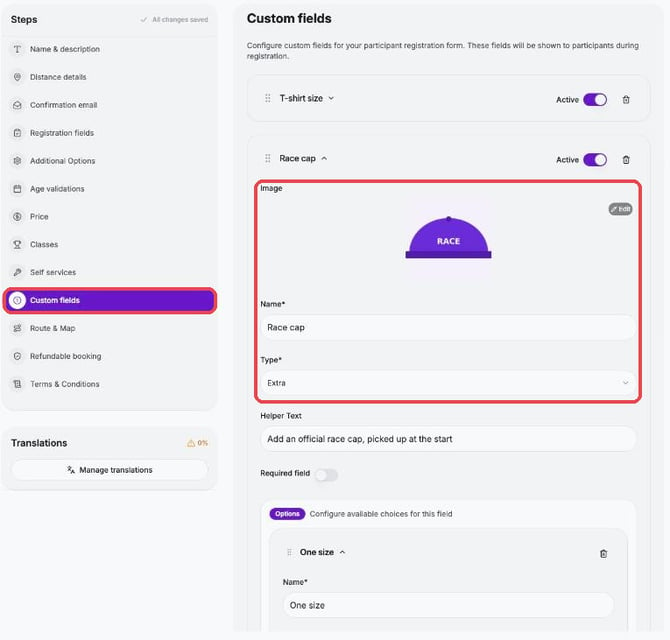
3. Click Custom fields and then Add Custom Field. Choose the type Extra, upload a picture of the product and enter a Name. Use Helper Text to tell participants more, for example where they pick it up.
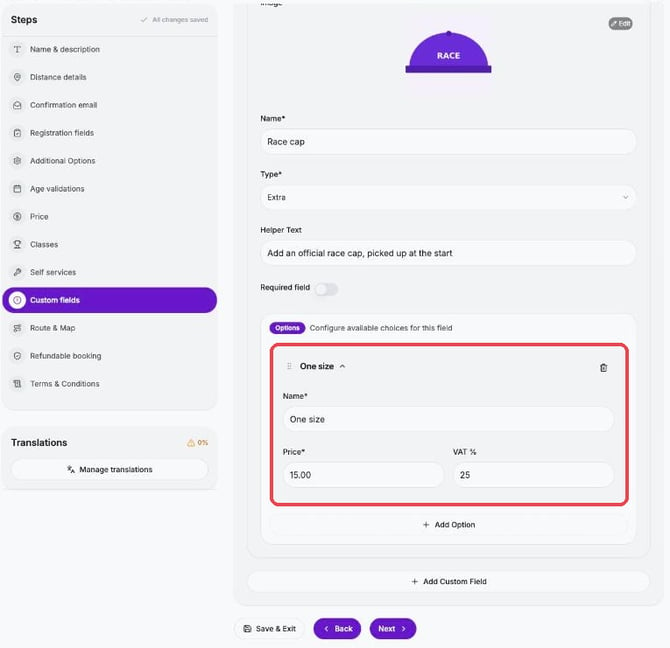
4. Click Add Option and enter a Name, Price and VAT %. Add one option per size or variant.
5. Click Save & Exit.
Note: Only switch on Required field if every participant must choose, for example a t-shirt size when the t-shirt is included in the price.
Ideas for add-ons
- T-shirt, cap or other merchandise: Extra, with one option per size
- Pasta party or meal: Dropdown, with a price per choice
- Transport to the start: Radio Button with yes/no and a price on yes
- Donation: Dropdown or Radio Button with a few fixed amounts
See who bought add-ons
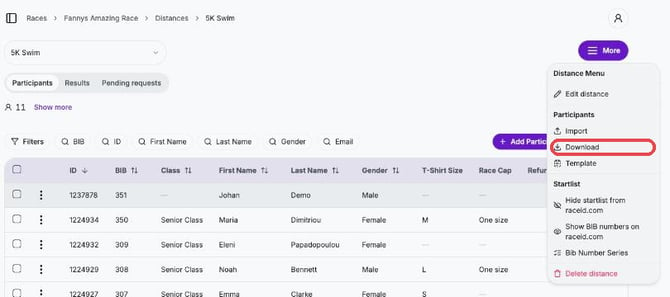
1. Open your race and click the distance. Under Participants, every add-on has its own column that shows what each participant chose.
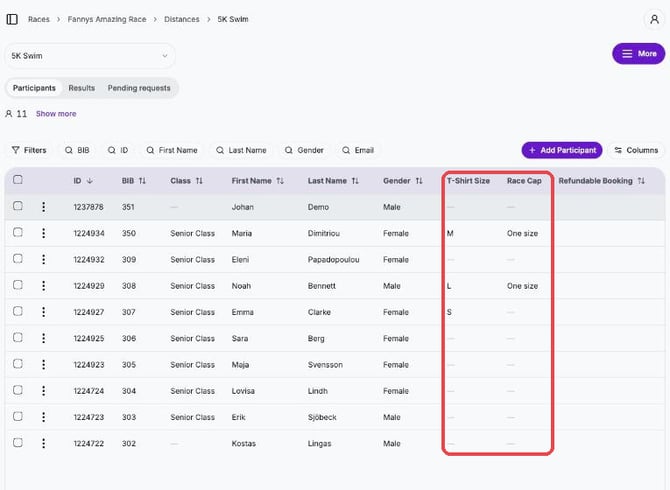
2. To get the list in Excel, click More → Download. Filter the add-on column in Excel to see only the participants who bought it.
Tips
- Need to change what a participant chose? Click the three dots next to the participant, select Edit and change the add-on.
- A coupon code can give a discount on add-ons too. See Create and manage coupon codes.
- If your race has more than one language, translate your add-ons under Manage translations. See Translations.