![RaceID-Wordmark.png]](https://support.raceid.com/hs-fs/hubfs/RaceID-Wordmark.png?height=20&name=RaceID-Wordmark.png)
Good to know
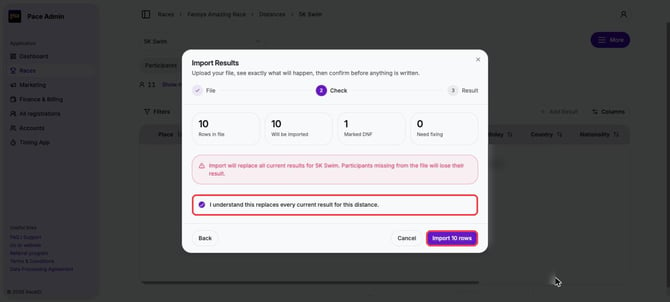
- The import replaces all current results for the distance. Participants missing from the file lose their result.
- The template lists every paid participant with their bib number and a time cell. Bib numbers must be registered on the distance.
- Enter times as HH:MM:SS.mmm. An empty time cell or 00:00:00.000 marks that participant DNF, so an untouched template marks everyone DNF.
- Excel (.xlsx, .xlsm) and CSV files work. Nothing is saved until you confirm.
Import results
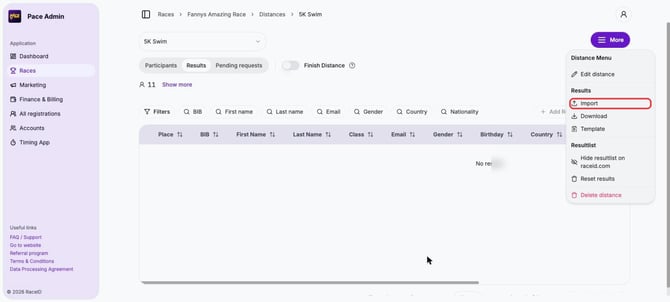
1. Log in to Pace Admin, open your race, open the distance and go to the Results tab. Click More and choose Import.
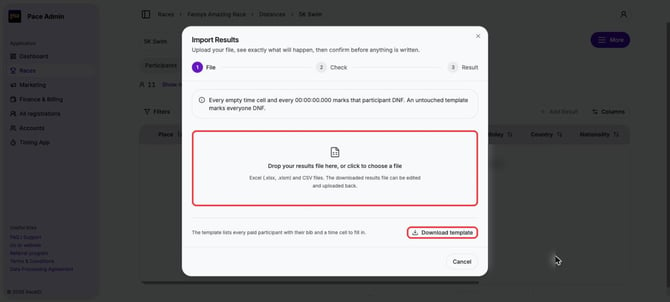
2. Click Download template.
3. Fill in the Time Result column for each bib and save the file.
4. Drop the file in the Import Results window, or click to choose it.
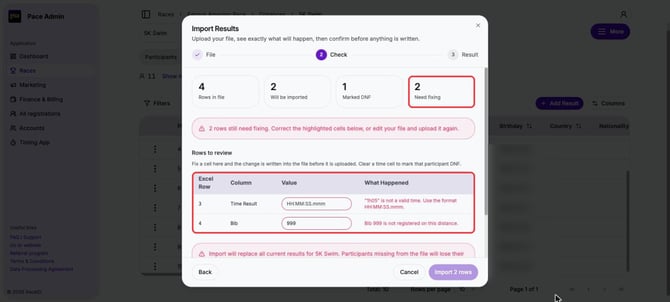
5. Check the summary. Rows with problems are listed under Rows to review: fix the cell right there, or edit your file and upload it again.
6. Tick I understand this replaces every current result for this distance. and click Import.
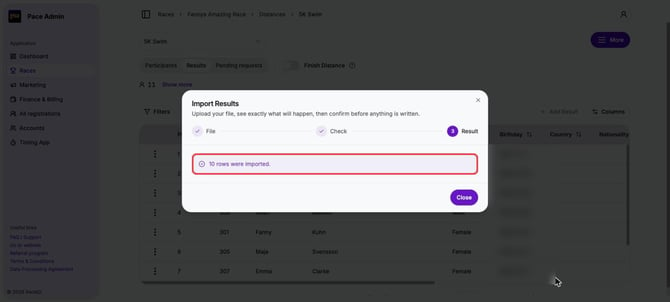
7. The window shows how many rows were imported. Click Close.
Tips
- Timed with another system, such as RaceResult? Copy the bib numbers and times into the template.
- To fix a single result after the import, see Add and edit results.