![RaceID-Wordmark.png]](https://support.raceid.com/hs-fs/hubfs/RaceID-Wordmark.png?height=20&name=RaceID-Wordmark.png)
Good to know
- Teams are managed on a team distance, which has the tabs Teams, Participants and Results.
- Each team has a team name and a BIB number. If the distance uses classes, the team also needs a class.
- The team name in the participant list shows how many places are filled, for example Stockholm Sharks (1/2).
Add a team
1. Log in to Pace Admin, open your race and open the team distance under Distances.
2. On the Teams tab, click Add Team.
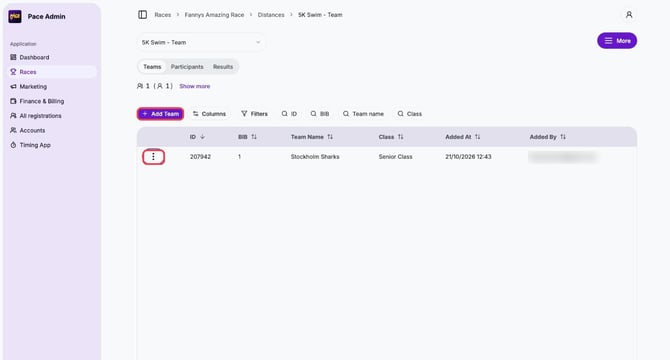
3. Enter the Team name, add a BIB number if you want, choose a Class if the distance uses classes, and click Save.
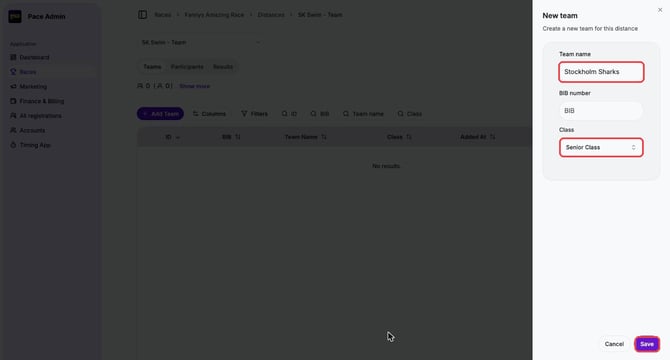
Add a team member
1. Go to the Participants tab and click Add Participant.
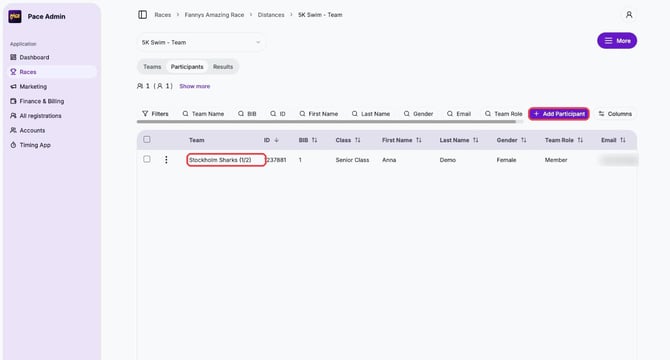
2. Choose the team under Team, fill in the participant's details and click Save.
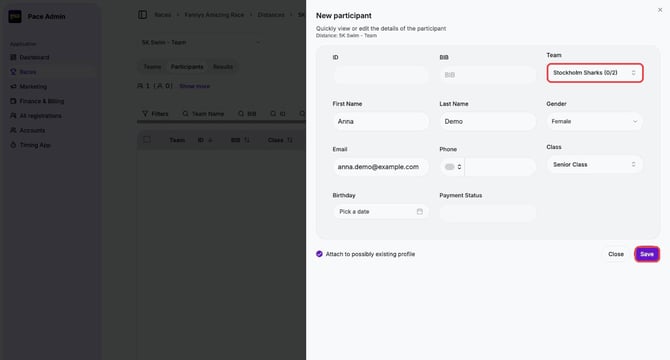
Move a member to another team
1. On the Participants tab, click ⋮ next to the member and choose Edit.
2. Choose the new team under Team and click Save.
Rename or edit a team
1. On the Teams tab, click ⋮ next to the team and choose Edit.
2. Change the team name, BIB number or class and click Save.
Move a team to another distance
1. On the Teams tab, click ⋮ next to the team and choose Change distance.
2. Choose the distance under Transfer to Distance and click Transfer to Distance.
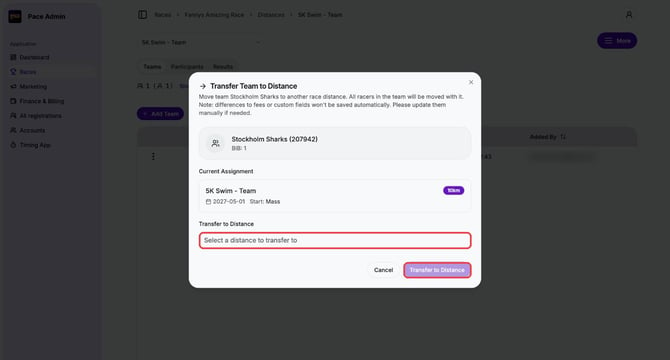
All members of the team move with it. Differences in fees or custom fields are not saved automatically, so update them manually if needed.
Delete a team
1. On the Teams tab, click ⋮ next to the team and choose Delete team.
Tips
- The ⋮ menu next to a member also lets you Resend confirmation email, Attach to RaceID profile or Delete the member.
- Not sure whether to use a team distance or a Team field? See Team registration: team distance or Team field?.
- Want the member to pay through Pace? See Add a participant and send a payment link.