![RaceID-Wordmark.png]](https://support.raceid.com/hs-fs/hubfs/RaceID-Wordmark.png?height=20&name=RaceID-Wordmark.png)
Good to know
- Results are managed per distance, on the distance's Results tab. Results from the Timing App or an import show up here.
- Until a distance is finished, participants who log a time are temporarily marked DNF until their total time is registered. Turning on Finish Distance locks the current placings and finalizes the results.
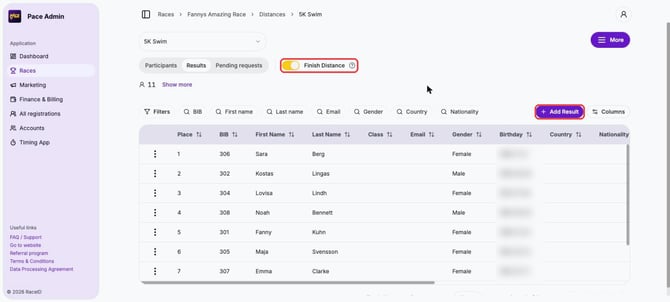
- Add Result becomes available once Finish Distance is turned on.
Edit a time
1. Log in to Pace Admin, open your race, open the distance under Distances and go to the Results tab.
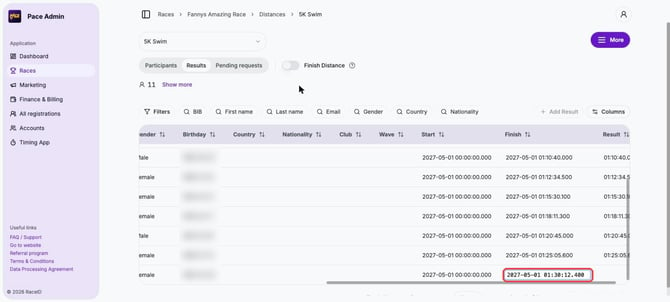
2. Scroll right to the Finish column and double-click the time you want to change.
3. Type the new finish time as YYYY-MM-DD HH:MM:SS.mmm and press Enter. The Result column updates.
Add a missing result
1. On the Results tab, turn on Finish Distance and click Add Result.
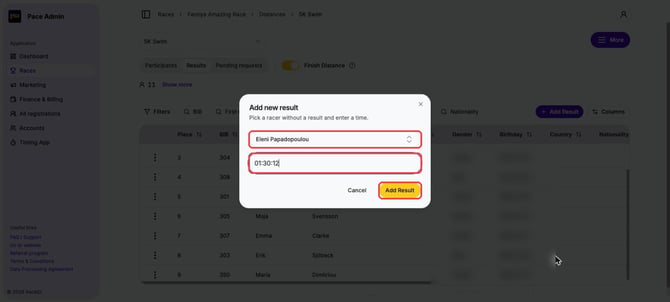
2. Search for the participant by name or bib number (only participants without a result are listed), enter the time as HH:MM:SS and click Add Result.
Remove a result
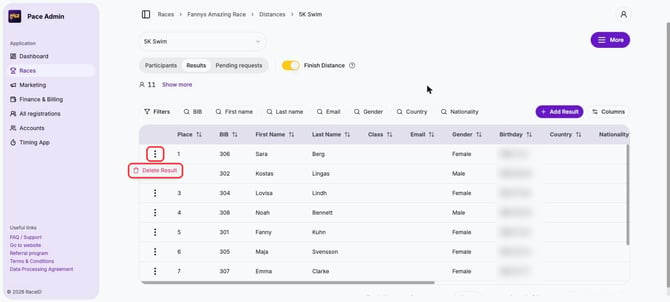
1. Click ⋮ next to the participant and choose Delete Result.
2. Click Confirm.
Tips
- Many results to add or fix? Import them all at once: Import results.
- To hide the result list on raceid.com, click More and choose Hide resultlist on raceid.com.