![RaceID-Wordmark.png]](https://support.raceid.com/hs-fs/hubfs/RaceID-Wordmark.png?height=20&name=RaceID-Wordmark.png)
Good to know
- Pace Admin has a new, more secure login. There is no password anymore. You get a one-time code to your email or phone each time you log in.
- You can use the same email for your participant account and your organizer account.
- The Timing App still uses a password. See Log in to the Timing App below.
Log in to Pace Admin
1. Go to admin.pacesports.app and enter the email linked to your organizer account (1). If you have added a phone number to your account, you can use that instead.
2. Click Sign in (2).
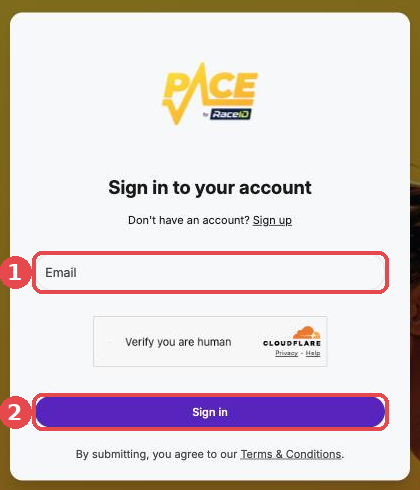
3. Enter the one-time code you get by email or text message. You are now logged in.
Tip: Can't find the code? Check your spam folder and wait a minute before you try again.
Give your team their own login
Never share your login. Add each person to your account instead, so they log in with their own email.
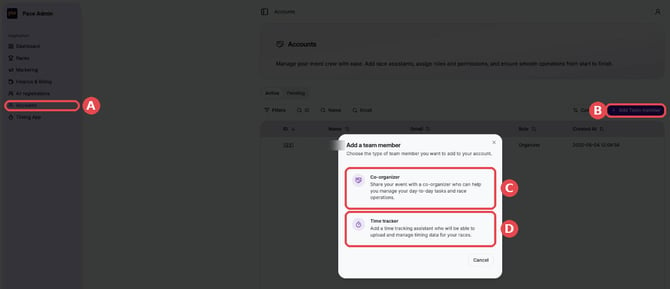
1. Click Accounts (A) and then Add Team member (B).
2. Choose Co-organizer (C) for someone who helps you manage the race, or Time tracker (D) for someone who only records times in the Timing App.
Read more: Add co-organizers / team members to your race and Set up timing assistants.
Log in to the Timing App
The Timing App still uses an email and password. You set up access and logins in Pace Admin.
Set your own Timing App password
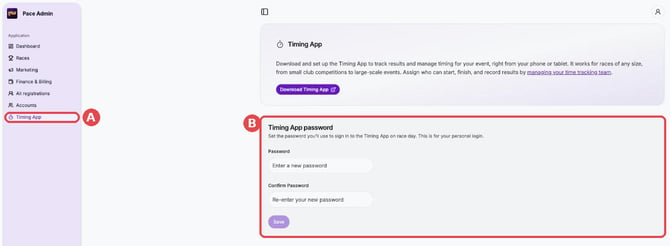
1. Click Timing App (A) in the menu.
2. Under Timing App password (B), enter a password, confirm it and click Save. Use this password and your organizer email to log in to the Timing App.
Give your timing assistants access to a distance
1. Open your race. Click the three dots next to the distance and select Edit.
2. Click Additional Options and turn on Timing App.
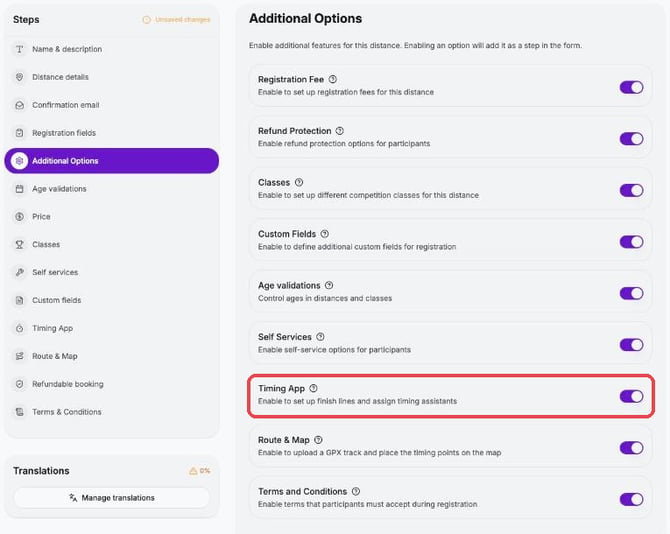
3. Click the new step Timing App (A). Choose your timing assistants under Assistants (B). Click Add Checkpoint if you have timing points along the course.
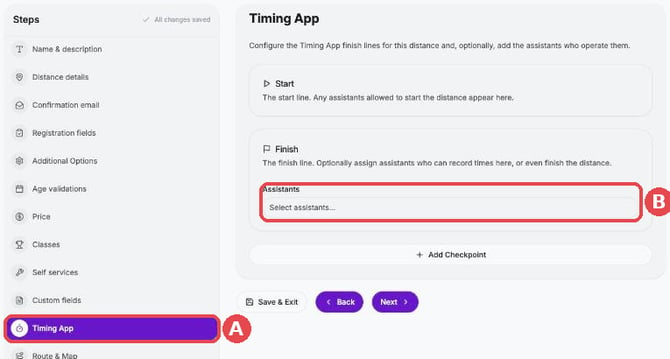
4. Click Save & Exit. Do this for every distance where you use the Timing App.
Trouble logging in?
We are happy to help! Email organizer@raceid.com and tell us which email or phone number you are trying to log in with. For example, we can help if:
- you have the wrong email or phone number on your account – we can update it for you
- you don't get the code
- you have more than one account and end up in the wrong one
- you can't log in to the Timing App