![RaceID-Wordmark.png]](https://support.raceid.com/hs-fs/hubfs/RaceID-Wordmark.png?height=20&name=RaceID-Wordmark.png)
Good to know
- You need a GPX file of your course. Most route planners and GPS watch apps can export a route as GPX.
- GPX only, max 5 MB.
- The route is added per distance. Repeat the steps for each distance.
- Participants see the route in the Pace+ app.
How to upload your course map
1. Log in to Pace Admin and open your race.
2. Under Distances, click … next to the distance and select Edit.
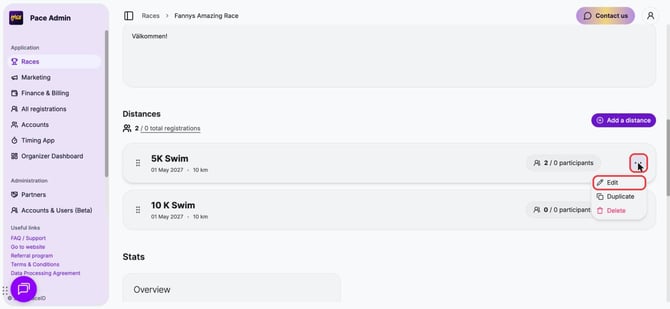
3. Click Additional Options in the Steps menu.
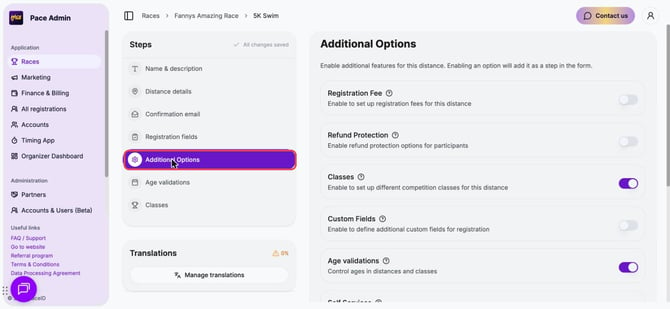
4. Turn on Route & Map. A new step called Route & Map appears in the Steps menu. Click it.
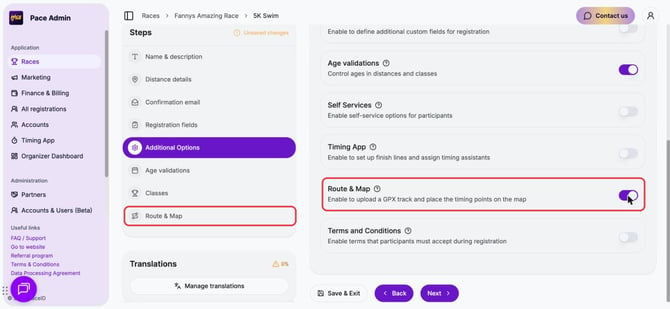
5. Drag and drop your GPX file into the upload area, or click it to browse.
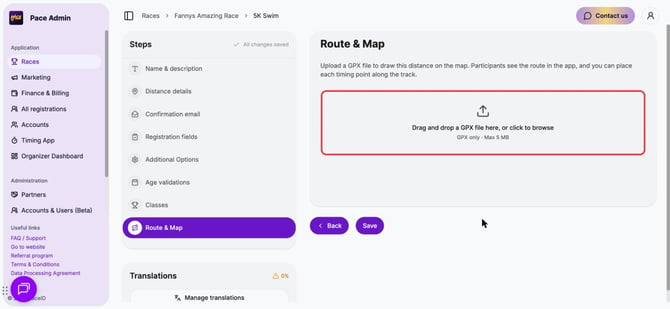
6. Check the route on the map. The start point is marked S.
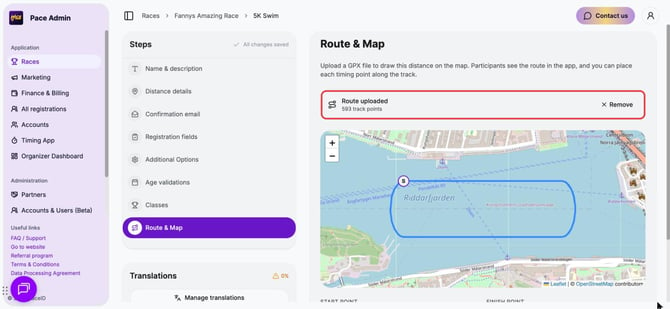
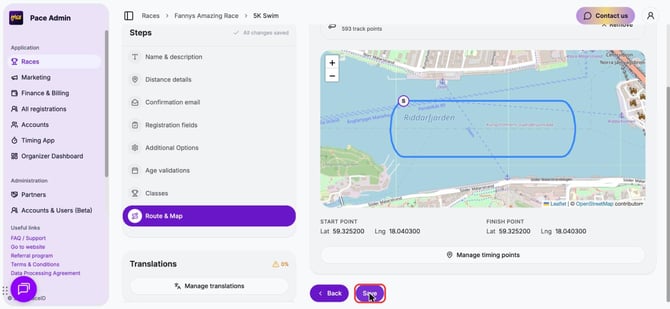
7. Click Save.
Tips
- To replace the route, click Remove and upload a new file. This also removes any timing points placed on the map.
- Click Manage timing points to place timing points along the track.